
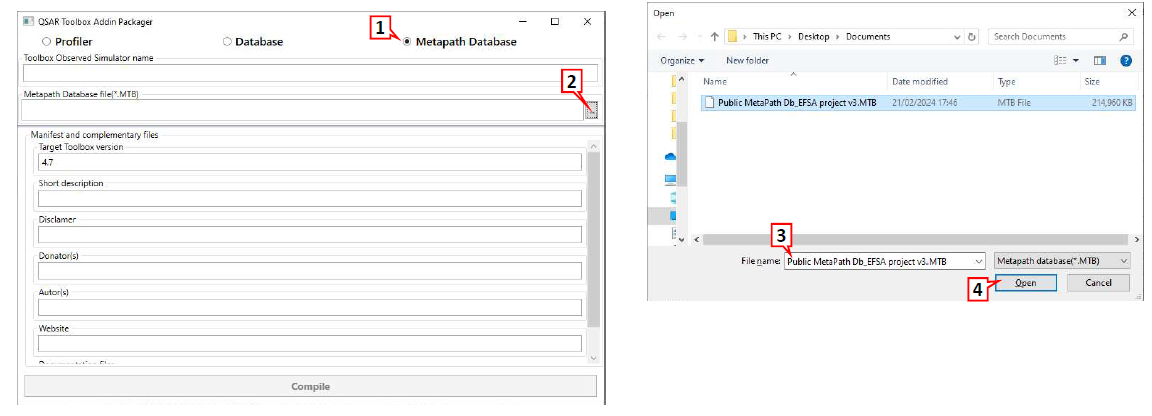
1. Tick the radio button next to Metapath database;
2. Click Browse to select the MetapathDatabase.MTB file;
3. Select the file;
4. Click Open.
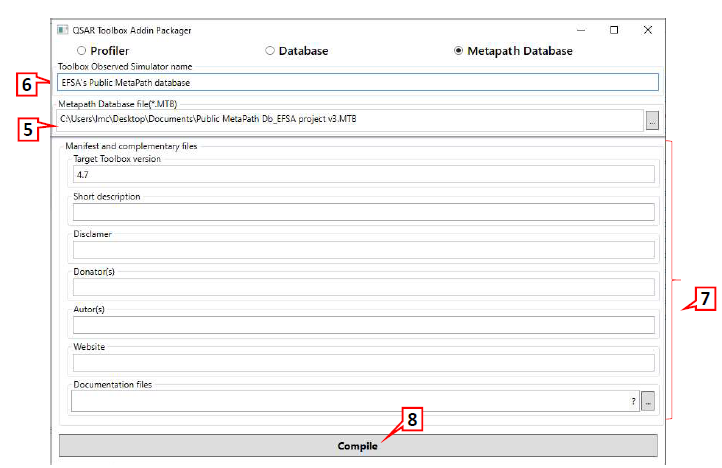
5. The MetaPath database file is displayed;
6. Fill in the name of the Toolbox observed simulator name;
7. Fill in the manifest and complementary files (optional);
8. Click Compile.
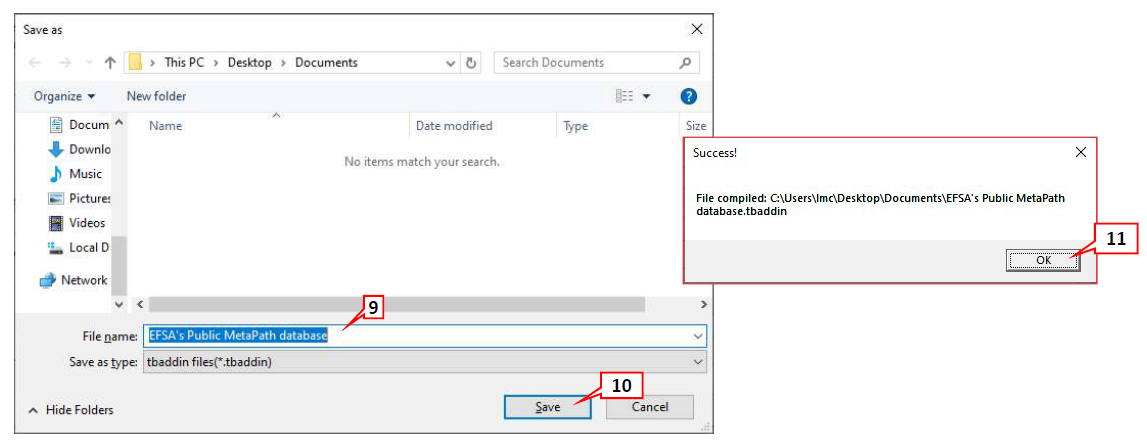
9. Type in the name of the add-in;
10. Click Save;
11. A conformation message appears displaying the path where the add-in is saved. The extension of the add-in is *.tbaddin. Click OK.

In order to upload the add-in in QSAR Toolbox:
12. Click Settings icon
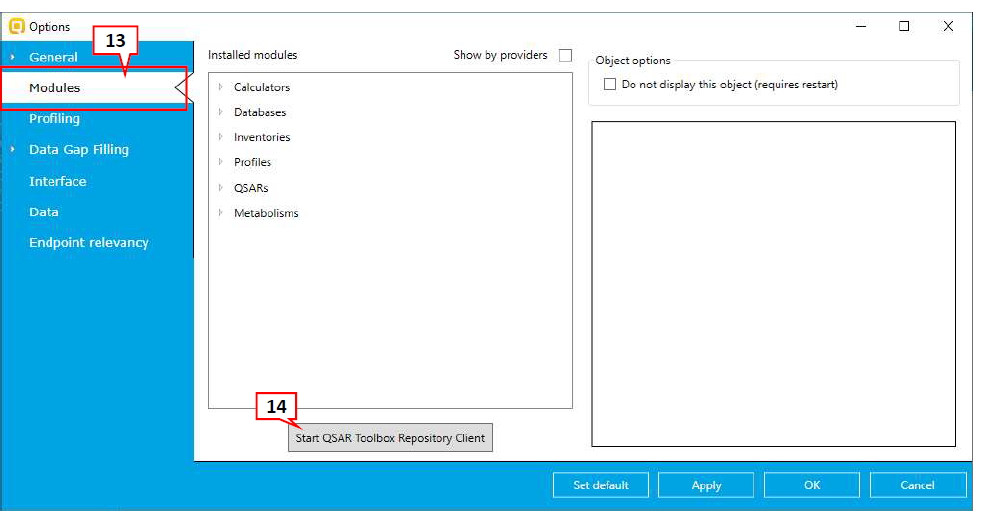
13. Go to Modules tab;
14. Click Start QSAR Toolbox Repository Client.
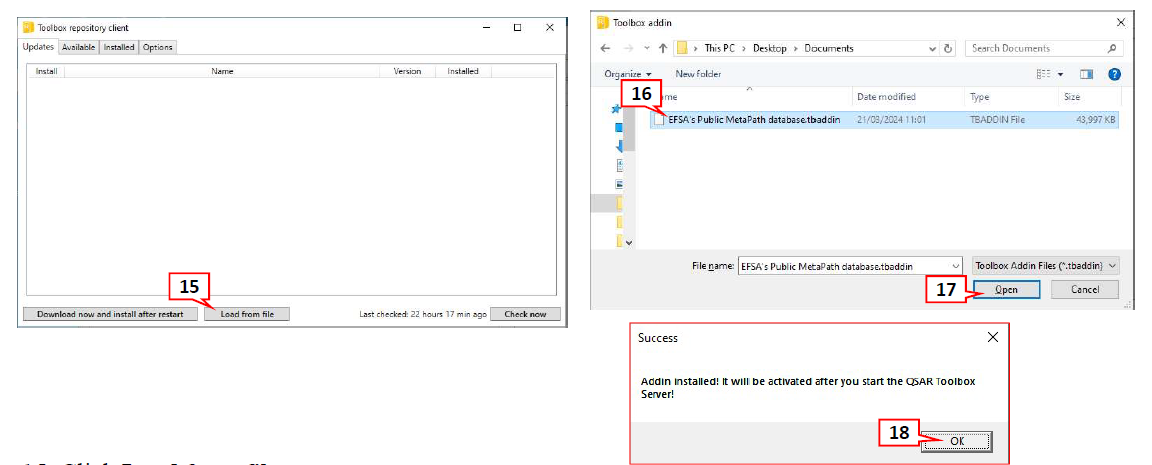
15. Click Load from file;
16. Select EFSA’s Public MetaPath database.tbaddin;
17. Click Open;
18. A confirmation message appears, which informs that the add-in will be active after restart of the QSAR Toolbox Server. Click OK.
NB. The add-in will be available and can be used after Toolbox server and client restarts.